
Feedler on the iPhone Duo

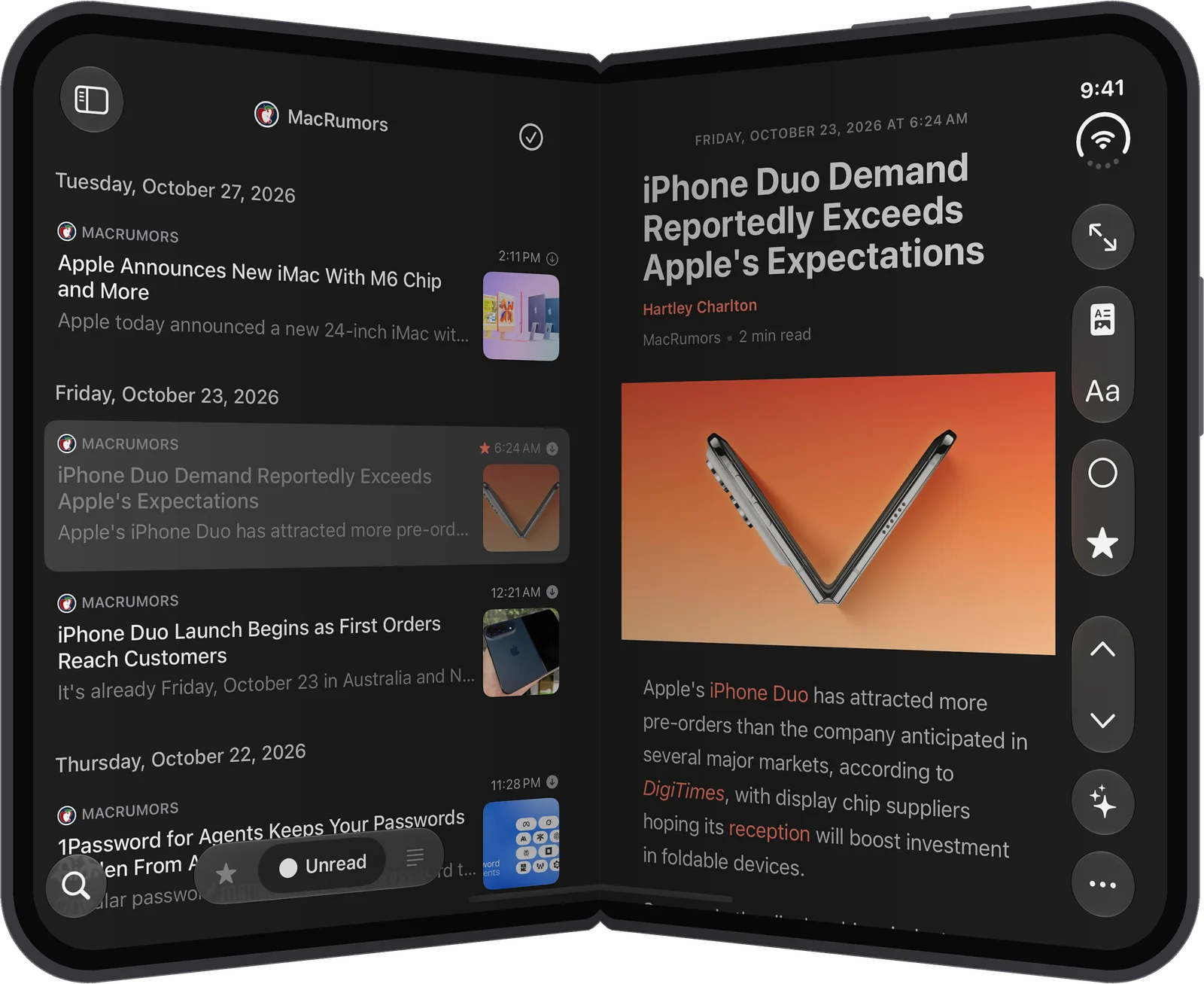
Feedler 1.9 introduces layouts designed for the iPhone Duo: folded, unfolded in portrait or landscape, and half open like a book. Fold or unfold it at any moment and you stay where you were.
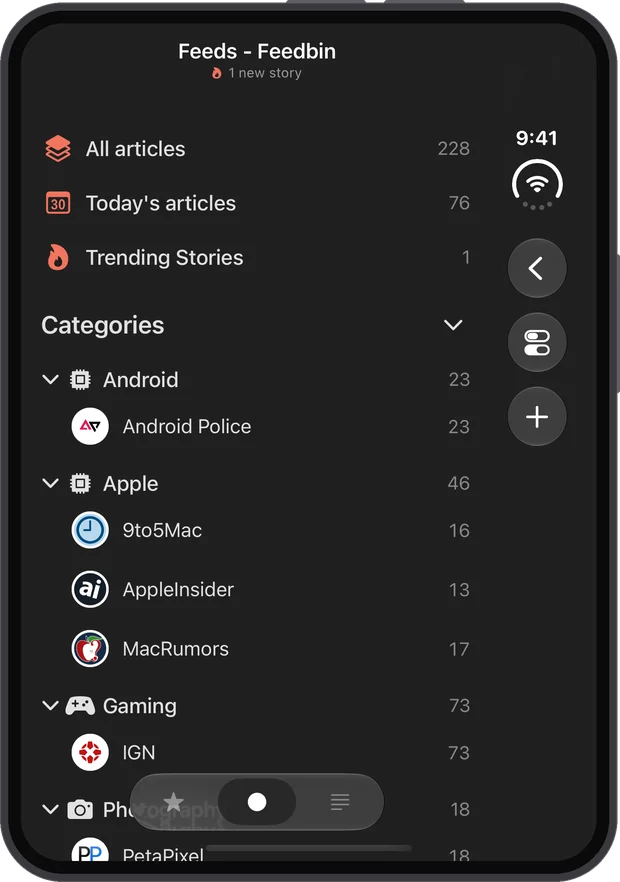
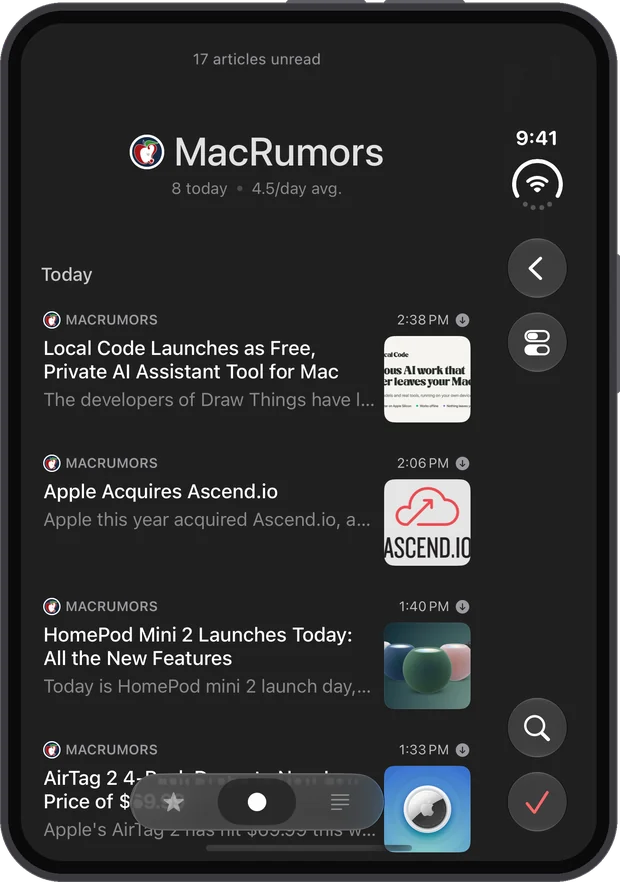
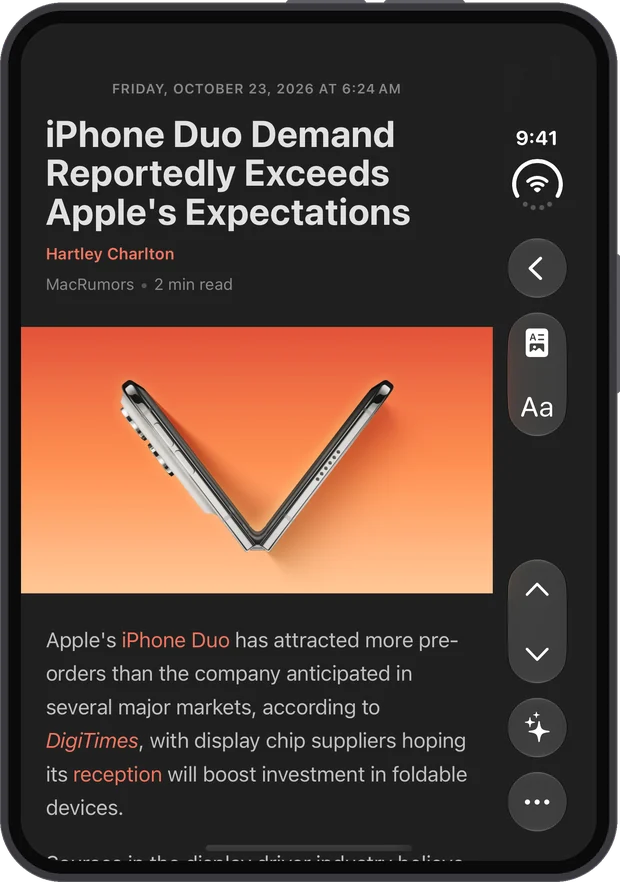
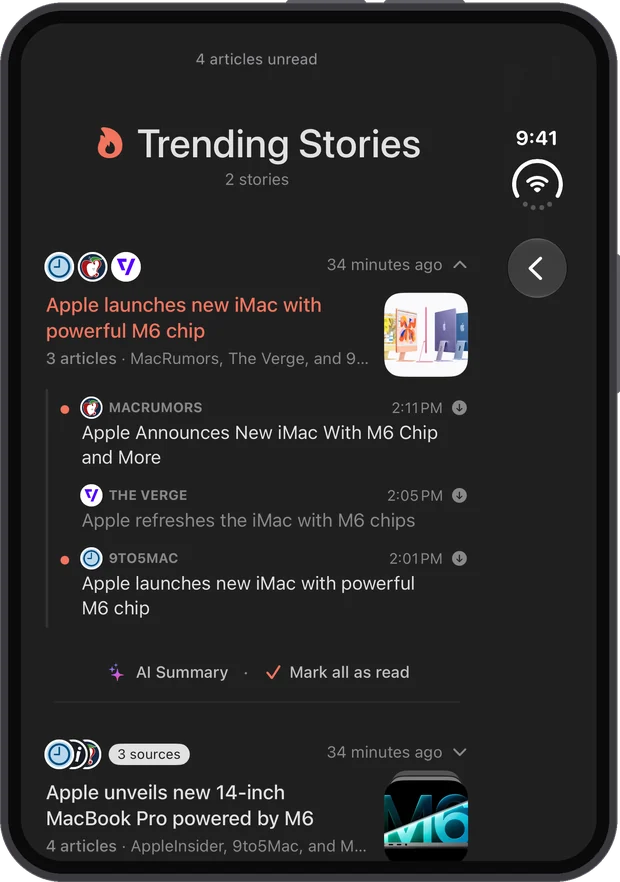
Folded: controls in the side toolbar
When folded, Feedler uses the outer screen much like a regular iPhone, with one difference: iOS shows a toolbar on the side of the screen, under the time, and Feedler puts its controls there instead of floating them over the content. At the top you find the back button with Settings under it, and Reader and Aa in an article. The Accounts page has no back button: in its place, an arrow pointing the other way takes you back to your feeds. On the Feeds page, the Add (+) button sits under Settings. In an article list, Search and Mark all as read sit at the bottom, within easy reach of your thumb, on the same line as the filter bar.
In an article, Previous, Next, the AI summary and More sit at the bottom of the side toolbar, with Read and Favorite in More. With the controls moved to the side, the article can start at the top of the screen.
Unfolded in portrait: the list and the article side by side
In portrait, the inner screen shows the list and the article side by side from the start. When the article pane is too narrow for all its controls, its toolbar keeps Full Screen, Reader and Aa, and moves the others into More. An iPad mini in portrait and a small Stage Manager window get the same toolbar.
Unfolded in landscape
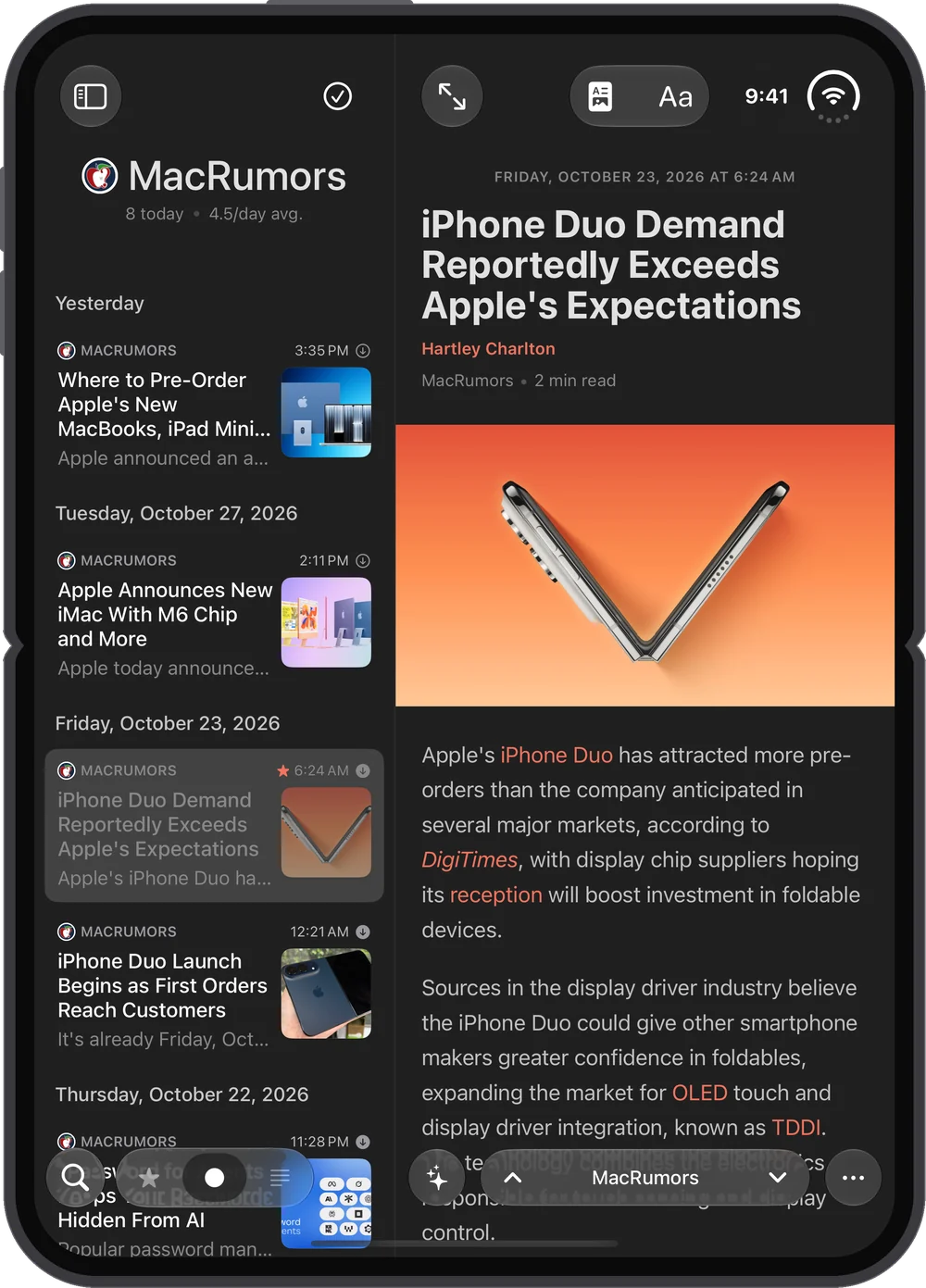
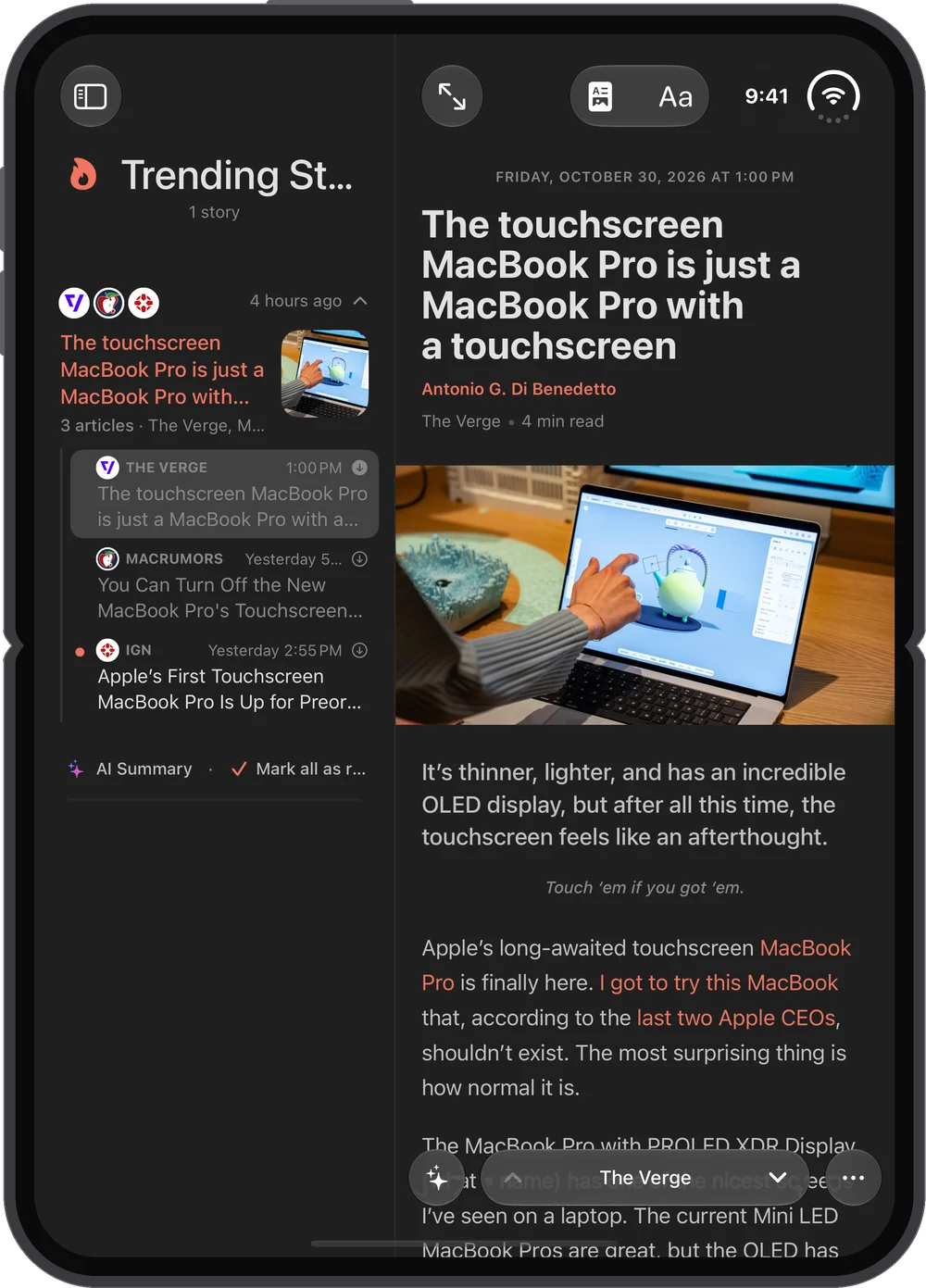
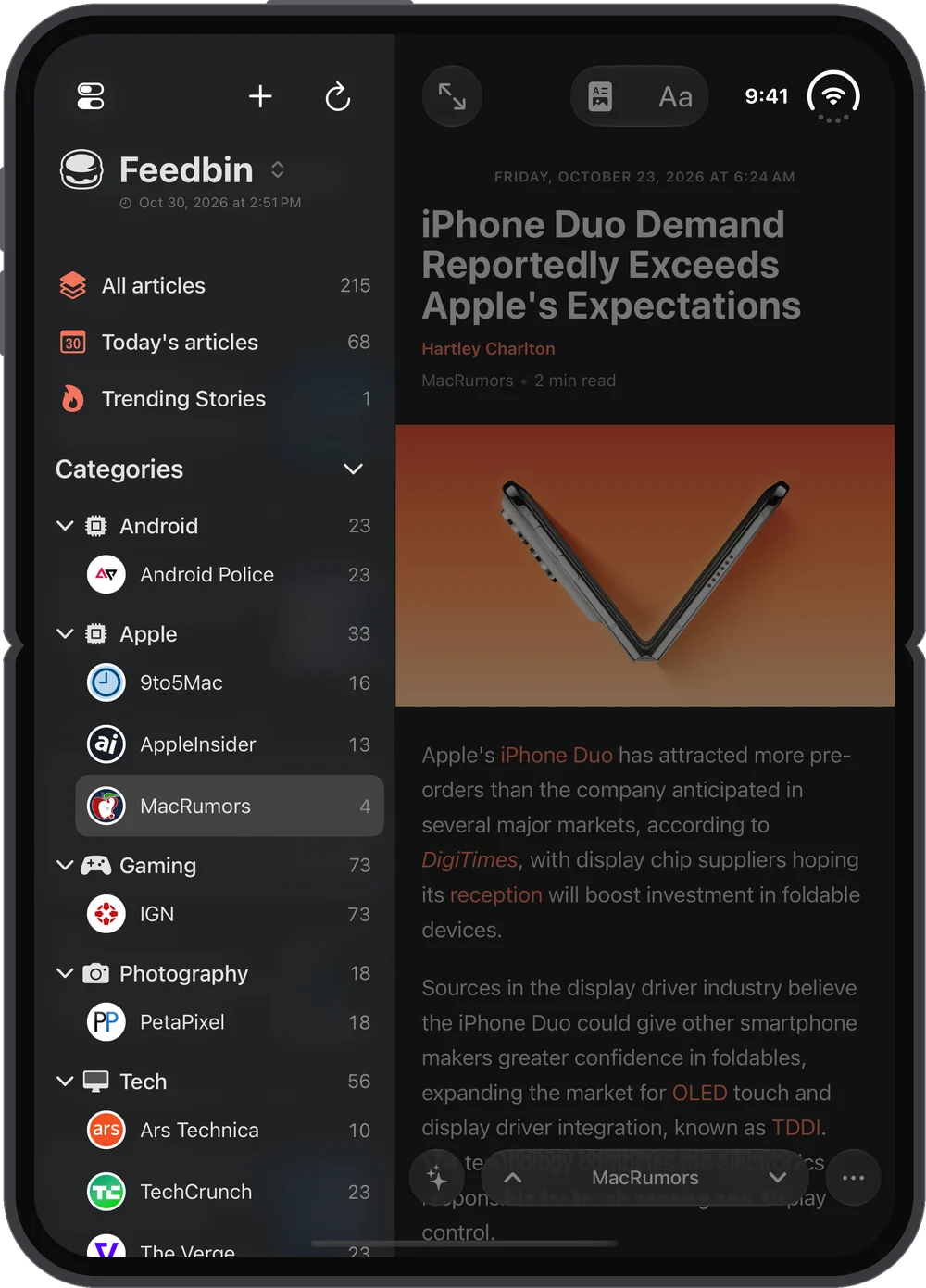
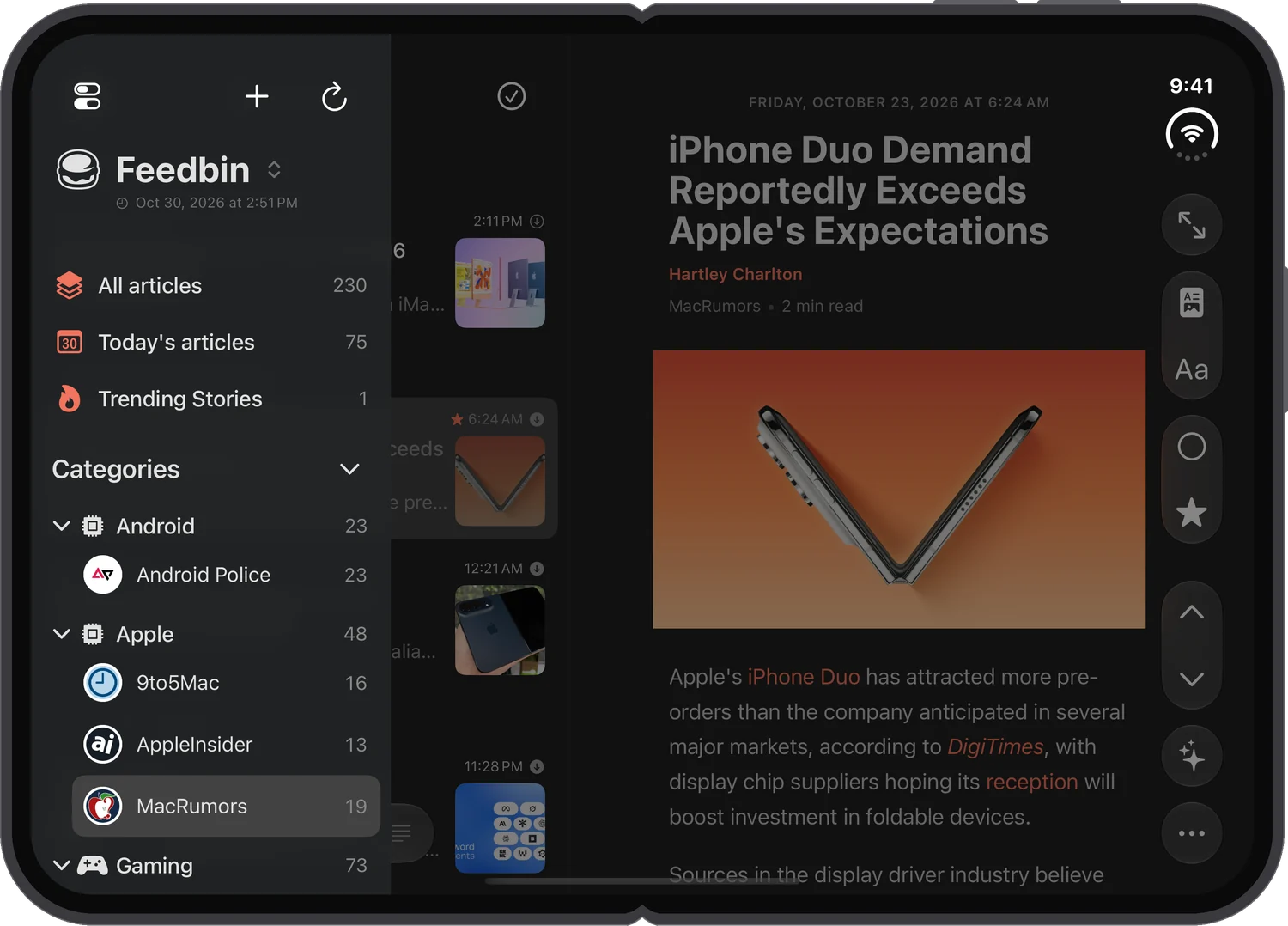
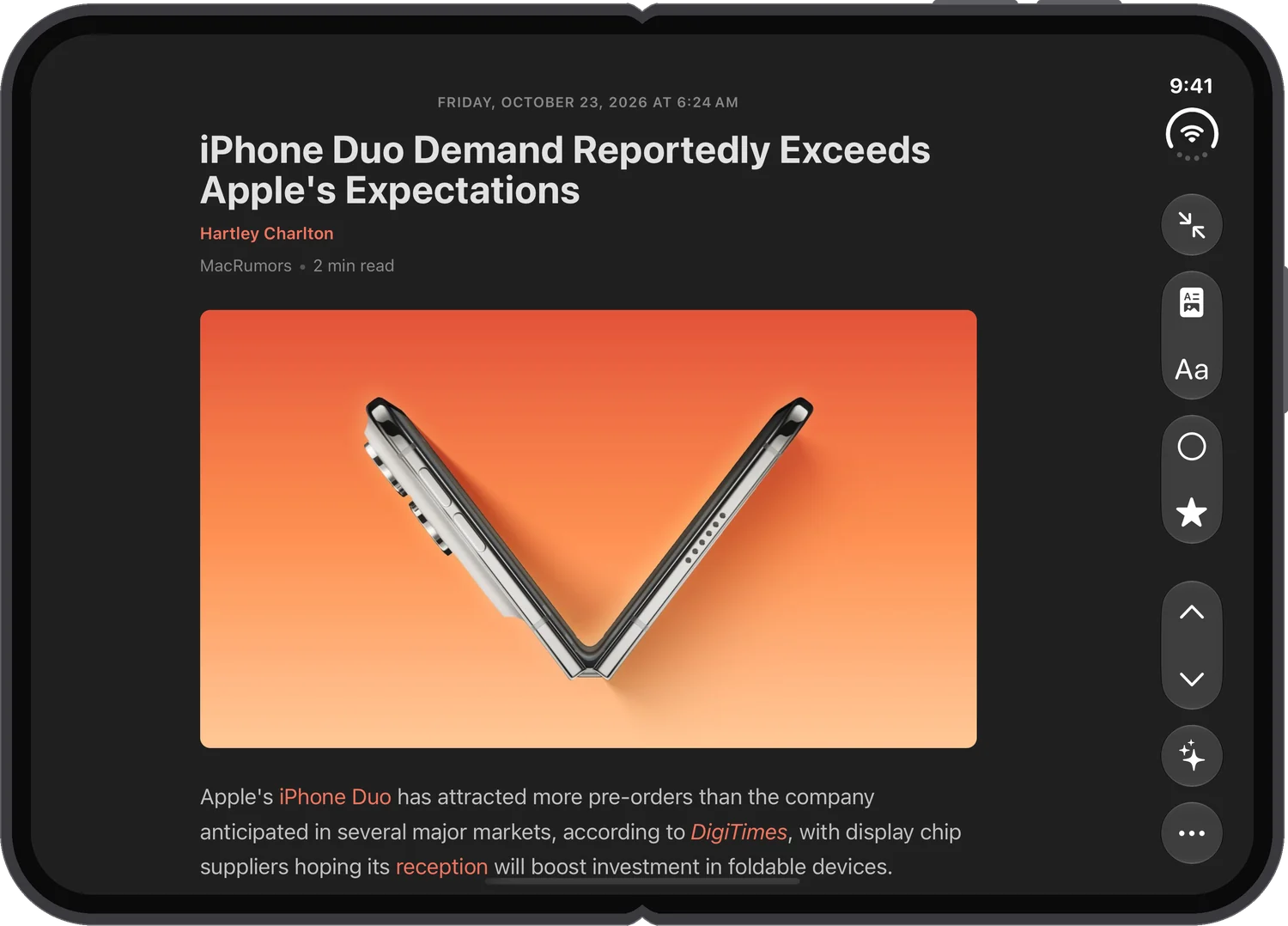
In landscape the list and the article sit side by side, and the sidebar button brings in your categories and feeds. With less vertical space available, the article's controls move into the side toolbar: Full Screen, Reader and Aa, Read and Favorite at the top, Previous, Next, the AI summary and More at the bottom. Tap Full Screen again to restore the columns.
The article's text stays clear of the fold
In landscape the fold runs down the middle of the inner screen. By default, Feedler keeps the article's text clear of it: with the list at its widest, the text begins just beyond the fold. No setting to change.
In this layout the text's side margins are a little thinner, and you can widen the text further with Aa › Article Width.
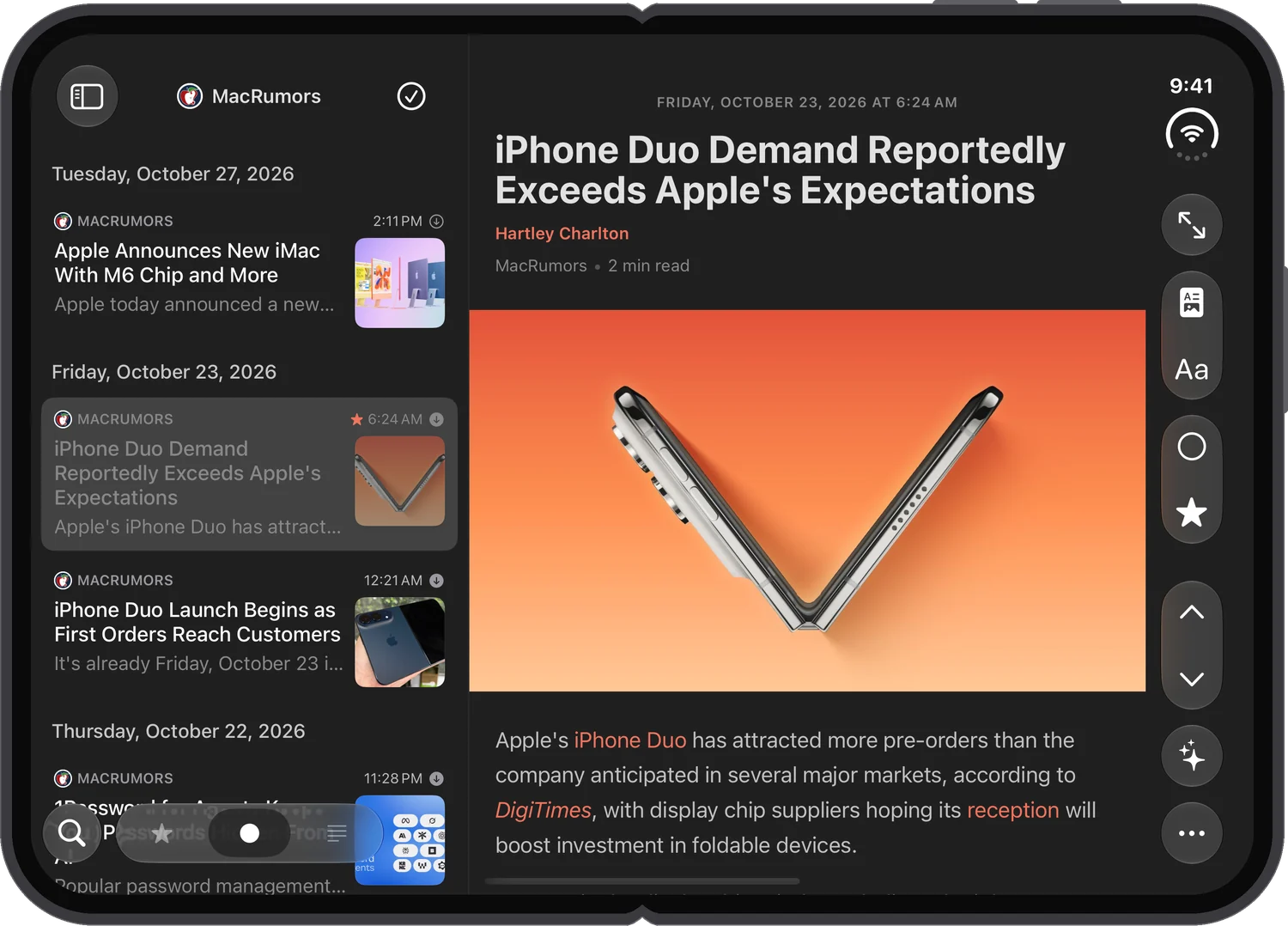
For a wider article, drag the separator to make the list narrower. Feedler takes it as your choice: the article then uses the extra space and runs across the fold.
Fold or unfold, you stay where you were
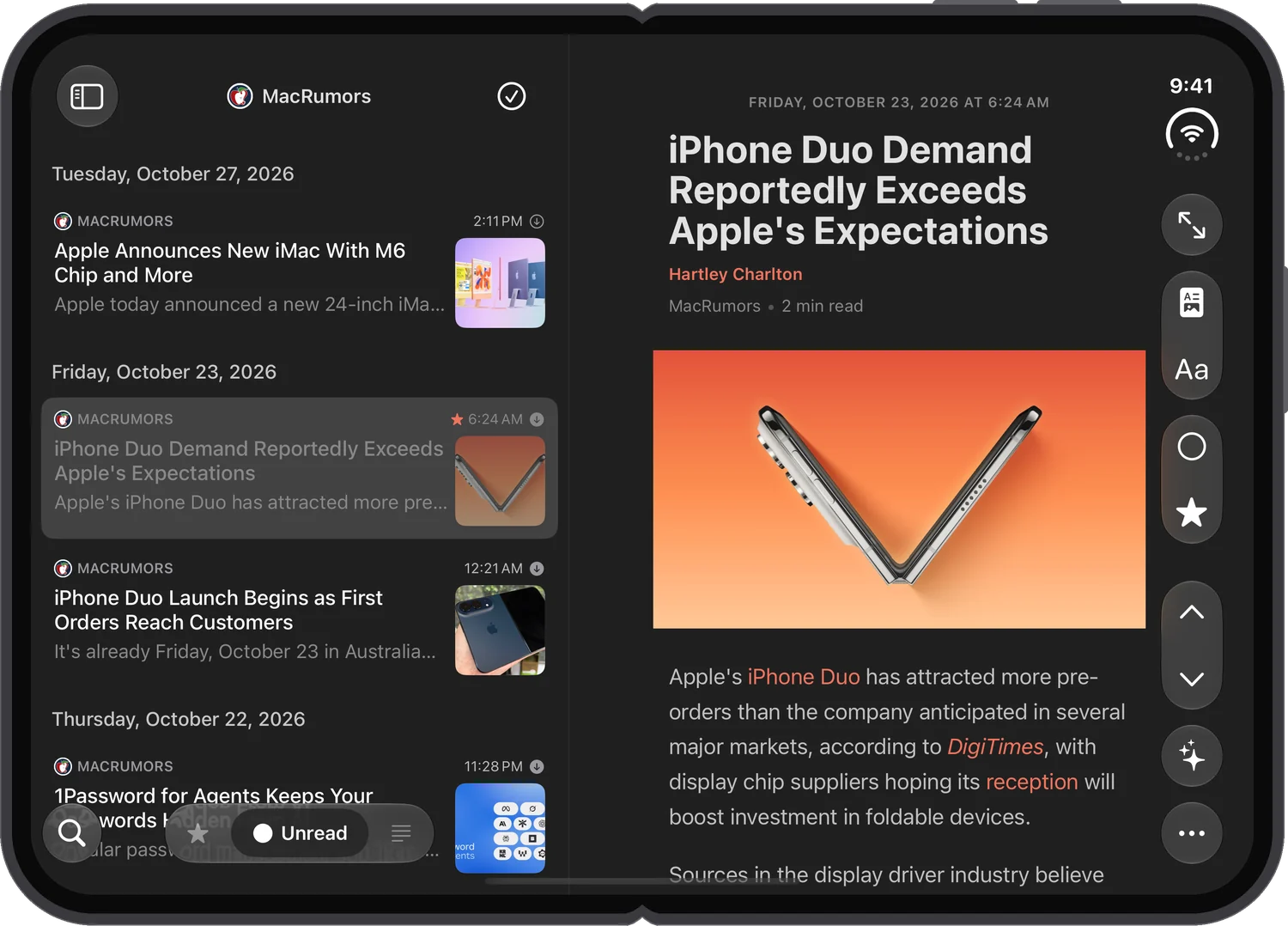
Folding or unfolding keeps your place in the feeds, the article lists and Trending Stories, along with the open article and the line you were reading. Articles you have just read remain in the current list until you leave it, even when you fold or unfold the phone. A feed you had open on the outer screen shows its articles when you unfold.
This is the first version of Feedler for the Duo. If something looks off on yours, I would like to hear about it on the contact page. The FAQ answers “Does Feedler work on the iPhone Duo?”.